WP SmartPay is well-suited for nonprofit fundraising and crowdfunding. This guide explains how to set up a donation form with suggested amounts, an open amount field, and a progress bar toward your fundraising goal.
Payment Forms vs Donation Forms
A form becomes a donation form when it is attached to a campaign or when Treat as donation form is on in Form Settings → Campaign. Payments on donation forms are recorded as donations and payers become donors. See Donations & Campaigns Overview.
Setting Up a Donation Form
- Go to SmartPay → Forms → Add New and start from the Charity Donation template, which already includes donation blocks such as Give Anonymously, Donor Comment and Tribute. See Donation Form Blocks.
- Give the form a title such as "Monthly Giving" or "Help Us Reach Our Goal".
- In the right sidebar, expand the Pricing panel.
- Select Custom Amount as the pricing type.
- Click Add Amount to add suggested tiers (e.g., 10, 25, 50, 100).
- Set a Minimum Amount (e.g., 5) to prevent $0 or accidental tiny donations.
- Mark the most common amount (e.g., 25) as the default — it will be pre-selected at checkout.
- Optionally leave a Default Amount in the open input to guide donors who click away from the cards.
- Turn on Treat as donation form in Form Settings → Campaign, or attach the form to a campaign.
- Publish the form and embed it on your Donate page using the shortcode.
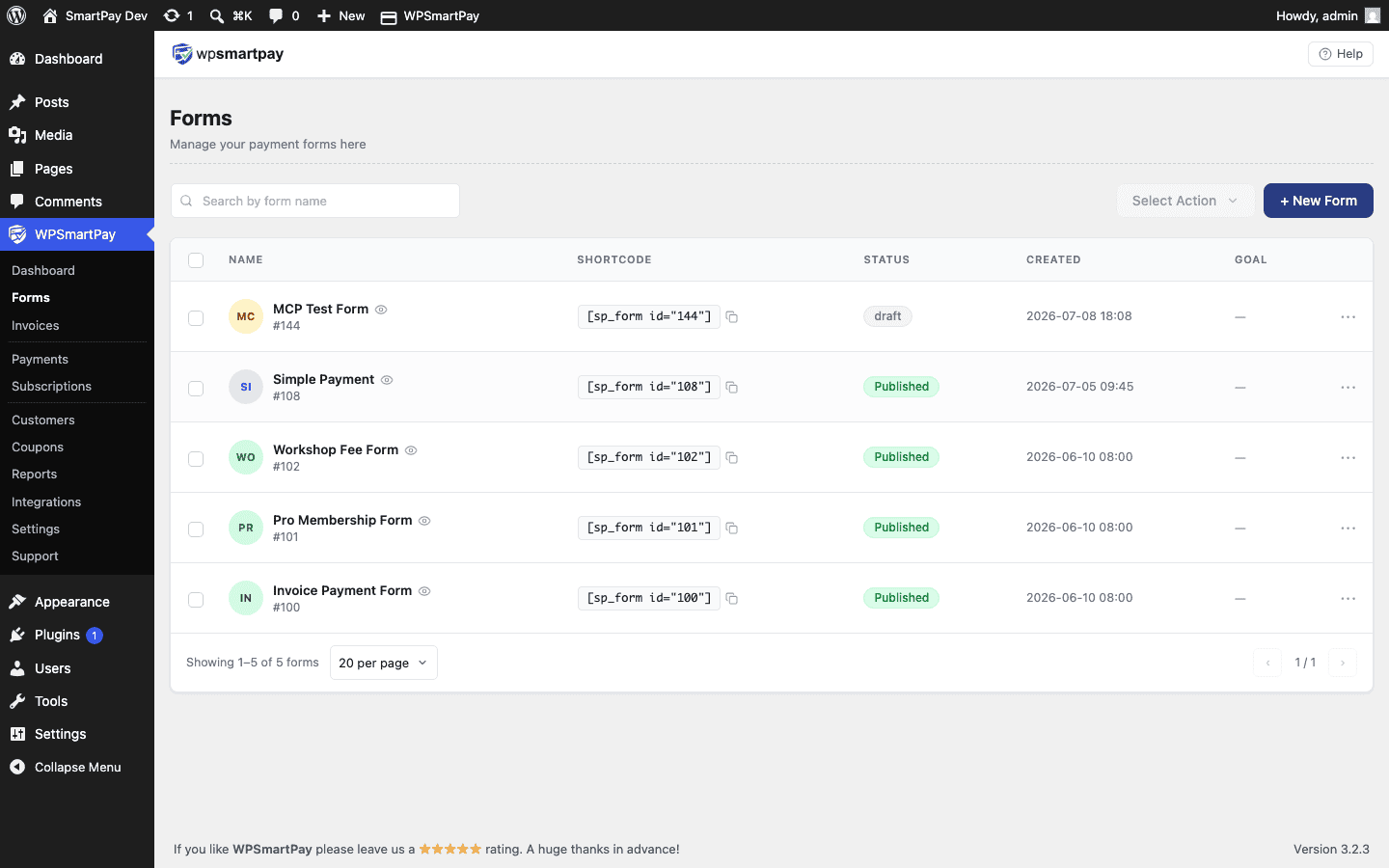
Revenue Goal & Progress Bar (Pro)
Tip: For fundraising, use a campaign goal — it can span several forms, count donations or donors, and comes with a public campaign page.
To track a single form instead, set a goal on the form itself and show a progress bar on the form.
- Open the form in SmartPay → Forms and click the Goal tab in the right sidebar.
- Toggle Enable Goal on, then choose the goal type and target.
- Turn on Show Progress to Public to display the Goal Progress block to visitors.
- Update the form — the progress bar updates as donations come in.
See Form Goals for full configuration details.
Thank-You / Receipt Page
After a successful donation the customer is redirected to the Payment Receipt page. You can customise this page to include a warm thank-you message by editing the page set in SmartPay → Settings → General → Payment Success Page. Add the [smartpay_payment_receipt] shortcode to that page to display the donation amount and details.
Donation thank-you pages also show the campaign, frequency, a campaign progress box and (Pro) a Download receipt (PDF) link. See Payment Receipts.
Tip: Enabling Test Mode in SmartPay → Settings → Payment Gateways lets you make simulated donations to test the whole flow without processing any real charges.