
The WP SmartPay transactions list is your central ledger for every payment and donation on the site. You can search, filter, and open any record from one screen without writing any SQL or digging through WordPress posts.
Opening the Transactions List
Go to SmartPay → Transactions in your WordPress admin sidebar. This menu was called Payments in earlier versions; old Payments links redirect here.
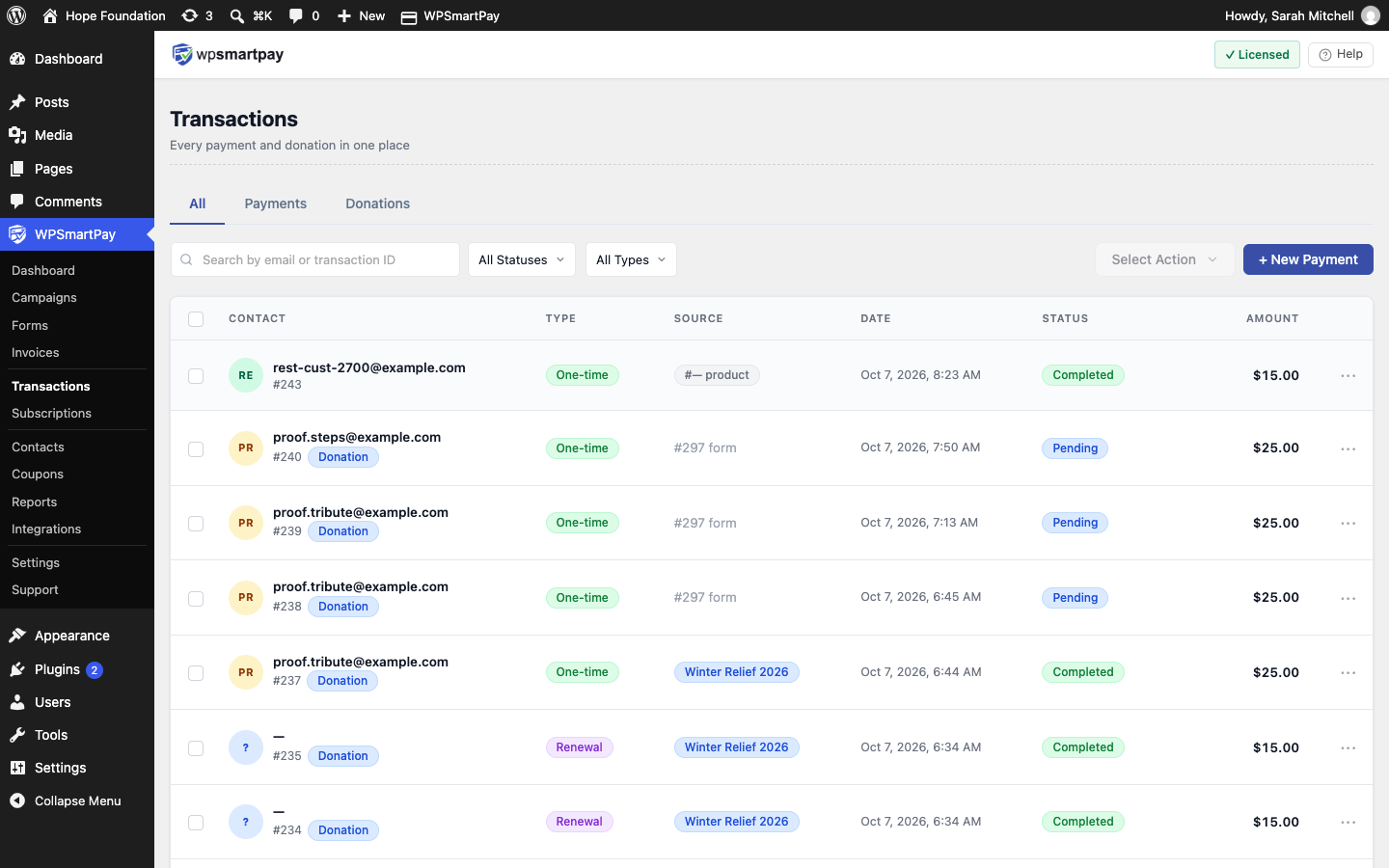
Tabs
- All — Every payment and donation. Donations show a Donation badge.
- Payments — Sales only.
- Donations — Gifts only. Adds a Campaign column and hides the type filter. See Donations & Campaigns Overview.
The selected tab is kept in the URL, so you can bookmark or share it.
Column Overview
- Contact — Name, email and payment ID. The column is labelled Customer on the Payments tab and Donor on the Donations tab. Click to open the payment detail page.
- Type — One-time or Subscription for sales; Recurring or Renewal for recurring gifts.
- Source — The payment form or product that generated this payment. On the Donations tab this column is Campaign.
- Date — The date and time the payment was created.
- Status — Current payment status badge (Completed, Pending, Failed, etc.).
- Amount — The total charged, in your store currency.
Each row has View Details, Quick View and Delete actions.
Searching Transactions
The search bar at the top accepts a customer email address or a transaction ID.
Filtering
- Status — A dropdown: All Statuses, Completed, Pending, Failed, Refunded, Processing, Revoked or Abandoned. See Payment Statuses Explained.
- Type — All Types, Form or Product. Not shown on the Donations tab.
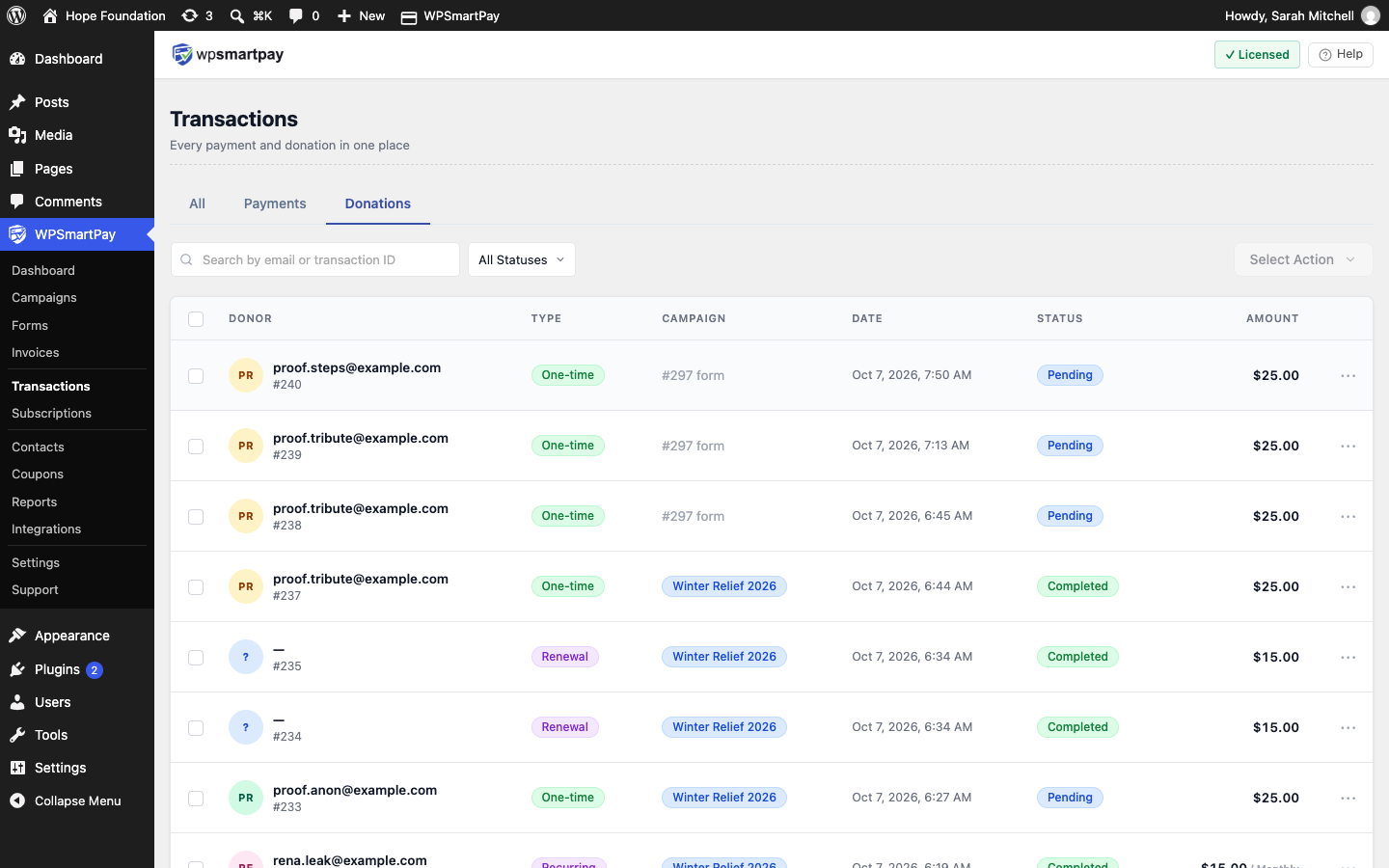
Note: The + New Payment button (Pro) is not shown on the Donations tab. See Manually Creating a Payment.