
WP SmartPay Pro integrates with Slack to keep you updated on your payment activity in real time.
You can connect your Slack workspace and send payment notifications directly to a selected Slack channel, making it easy to monitor successful payments and stay informed without checking your WordPress dashboard.
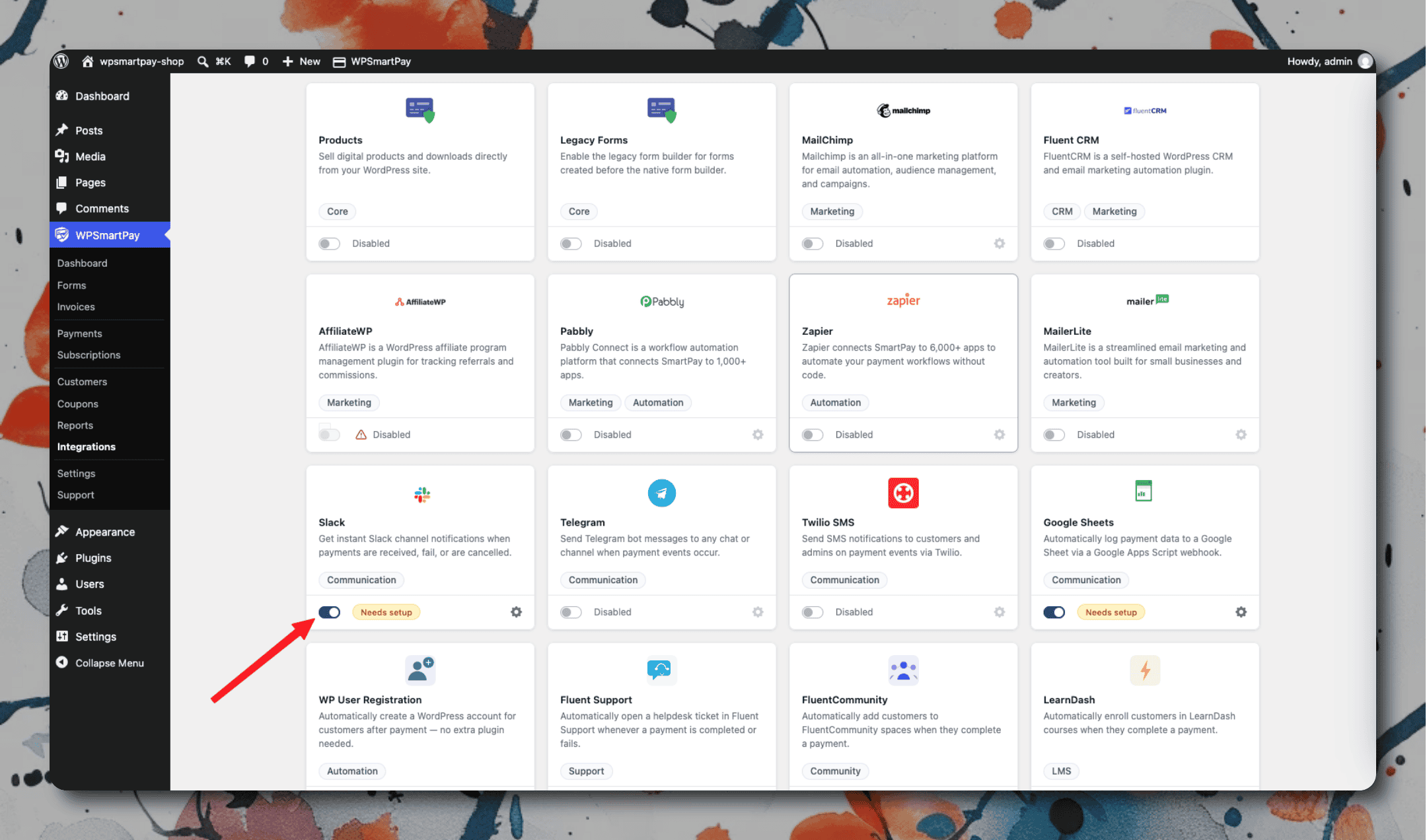
Setting Up
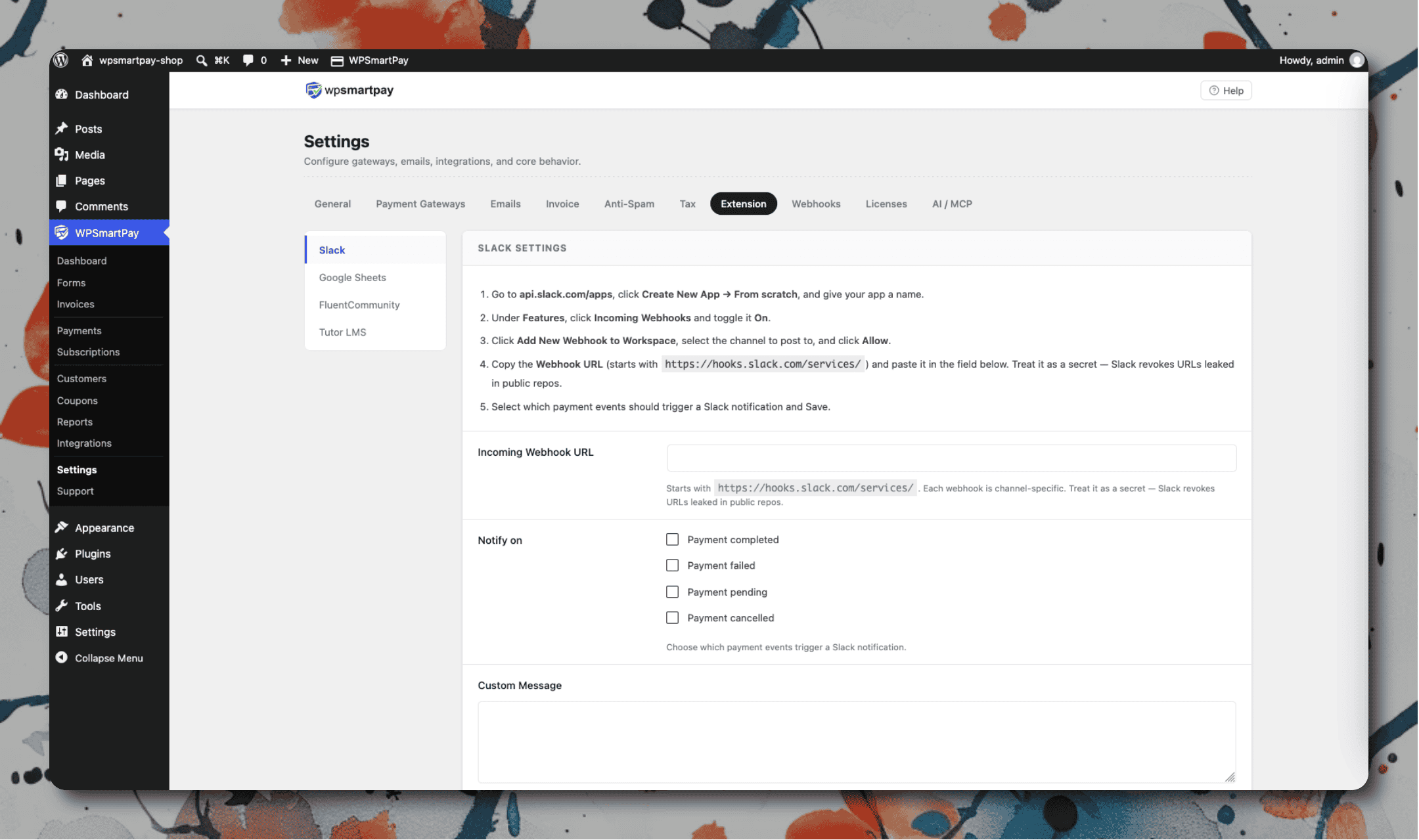
Go to api.slack.com/apps and create a new app (or use an existing one).
Under Incoming Webhooks, activate webhooks and click Add New Webhook to Workspace.
Select the channel to post to and authorize. Copy the webhook URL.
In WordPress, go to SmartPay → Extensions → Slack → Settings.
Paste the webhook URL and save.
What Gets Sent
For each completed payment, SmartPay posts a message containing:
Customer name and email
Payment amount and currency
Form/product name
Gateway used (Stripe, PayPal, etc.)
Direct link to the payment in the SmartPay admin
Filtering Which Events to Send
In the Slack settings, choose which events trigger a notification:
Payment completed ✓
Payment failed
Subscription created
Subscription cancelled
Refund issued
Tips
Route different events to different channels: Create multiple Slack webhooks pointing to different channels — one for sales (#sales-alerts), one for failures (#payment-failures) — and configure each in a separate webhook.
Don't send test mode payments to Slack: In the Slack settings, enable the option to suppress test-mode notifications so your sales channel only shows real payments.