
Many nonprofits and creators want to accept recurring donations from supporters — a fixed monthly contribution, a custom amount the donor chooses, or a combination of both. WP SmartPay makes this possible using a donation campaign: donors give once or set up a recurring gift on the form, and every gift counts toward the campaign goal.
Scenario
A nonprofit wants to offer supporters three giving levels ($10, $25, or $50/month) plus a "name your own amount" option. Donors should be charged automatically each month and receive a receipt. The organization's team should see donor totals and campaign progress in the dashboard.
What You Need
- WP SmartPay (free) for campaigns and donation forms
- WP SmartPay Pro for recurring giving
- A payment gateway that supports recurring billing (Stripe, Paddle Billing, Mollie, Razorpay or PayPal Standard)
Step 1: Create a Campaign
- Go to SmartPay → Campaigns and click + New Campaign.
- Enter a title, a goal (for example $10,000 raised) and an optional end date.
- Click Create campaign.
See Creating and Managing Campaigns for every campaign setting.
Step 2: Add a Donation Form
- On the campaign's Forms tab, click + Add form and choose the Charity Donation template.
- In the pricing block, set the amounts ($10 / $25 / $50) and turn on Allow custom amount.
- For fixed monthly amounts, set each pricing option's Billing Type to Subscription with a monthly period (Pro).
- To let donors make their custom amount recurring, open the pricing block's Custom Amount panel and set Billing for custom amount to Let donor choose, then tick the periods to offer (for example Monthly and Yearly).
- Publish the form.
See Donation Form Blocks for the anonymous, comment and tribute blocks included in the template.
Step 3: Check the Receipt
Donation receipts switch to donation wording automatically: "Thank you for your donation", with the campaign and frequency, and a "no goods or services" note. To customise the subject and body further, go to SmartPay → Settings → Emails. See Payment Receipts.
Step 4: Share the Campaign Page
- On the campaign, click View page to open its public page at
/campaign/{slug}, and share that URL with supporters. - Or embed the form on any page with its shortcode (e.g.,
[sp_form id="123"]).
Step 5: Track Donations
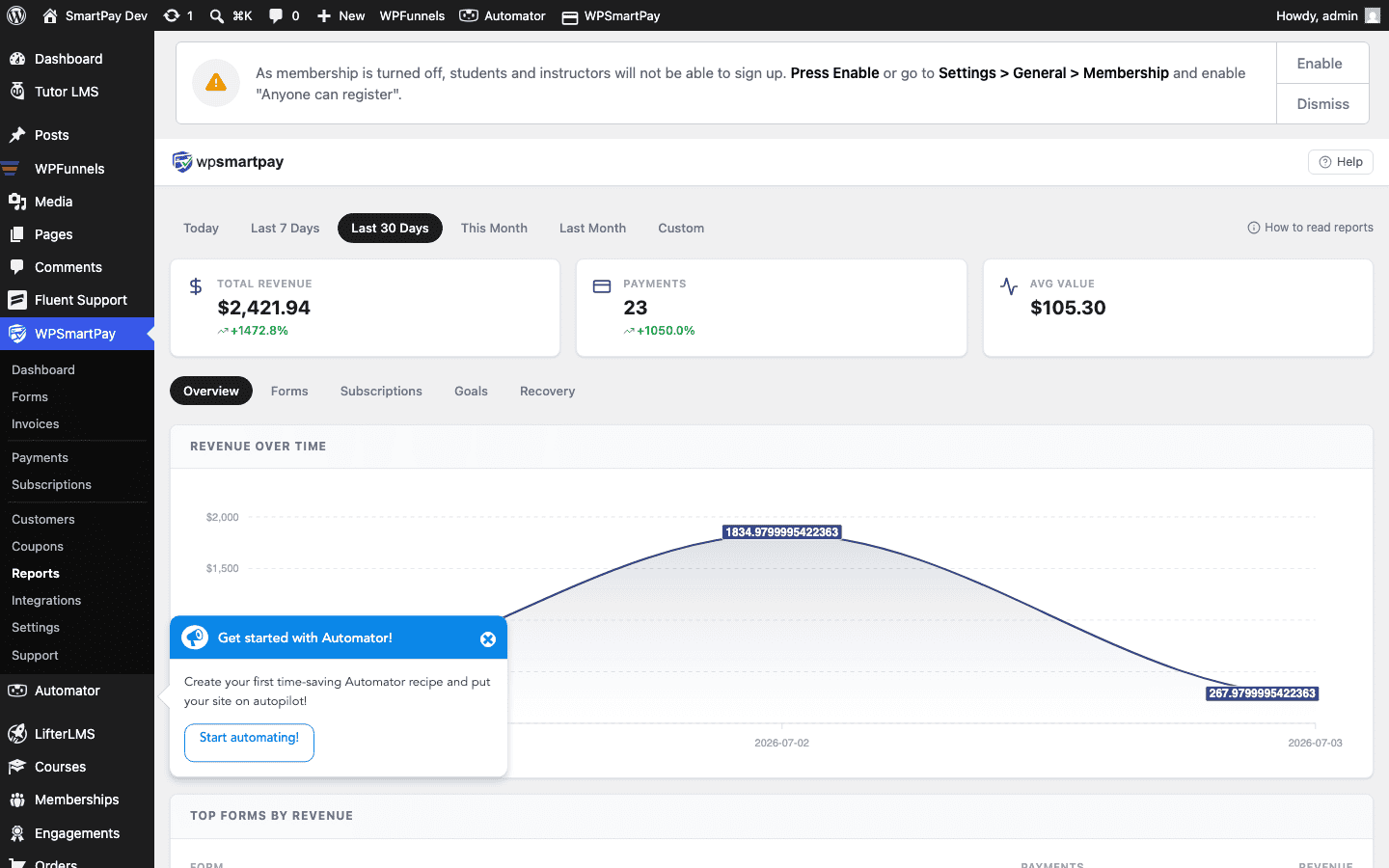
- The campaign's Overview tab shows amount raised, donations, donors and goal progress.
- SmartPay → Transactions → Donations lists every gift.
- SmartPay → Subscriptions → Donations (Pro) lists recurring gifts.
- SmartPay → Reports → Campaigns (Pro) compares campaigns. Donations are also included in the Revenue report.
Result
Supporters visit the campaign page, choose their giving level (or enter a custom amount and pick how often to give), pay via Stripe or PayPal, and are charged automatically on schedule. Every gift counts toward the campaign goal. Failed payments trigger SmartPay's built-in recovery flow, which retries the charge and notifies the donor. The nonprofit's admin dashboard shows real-time totals with no manual tracking needed.
Tips
- Make the campaign's donor list public to show a donor wall on the campaign page (Pro).
- Donors can cancel their recurring gift from the Giving tab of their account (Pro).
- Use Mailchimp or ActiveCampaign integration to add donors to a newsletter list automatically after their first payment.