
Refunding a Payment
WP SmartPay lets you issue refunds directly from the payment detail page. For gateways that support automatic refunds (Stripe and Paddle), the refund is processed immediately without logging into your gateway dashboard. For other gateways you get a guided manual process.
Automatic Refunds (Stripe & Paddle)
- Go to SmartPay → Payments and click the payment you want to refund.
- On the payment detail page, click the Refund button.
- Confirm the refund amount (full refund by default; you can enter a partial amount).
- Click Process Refund.
SmartPay sends the refund request to the gateway API. Within seconds the gateway confirms and SmartPay updates the payment status to Refunded. The activity log records the event with a timestamp and the refund amount.
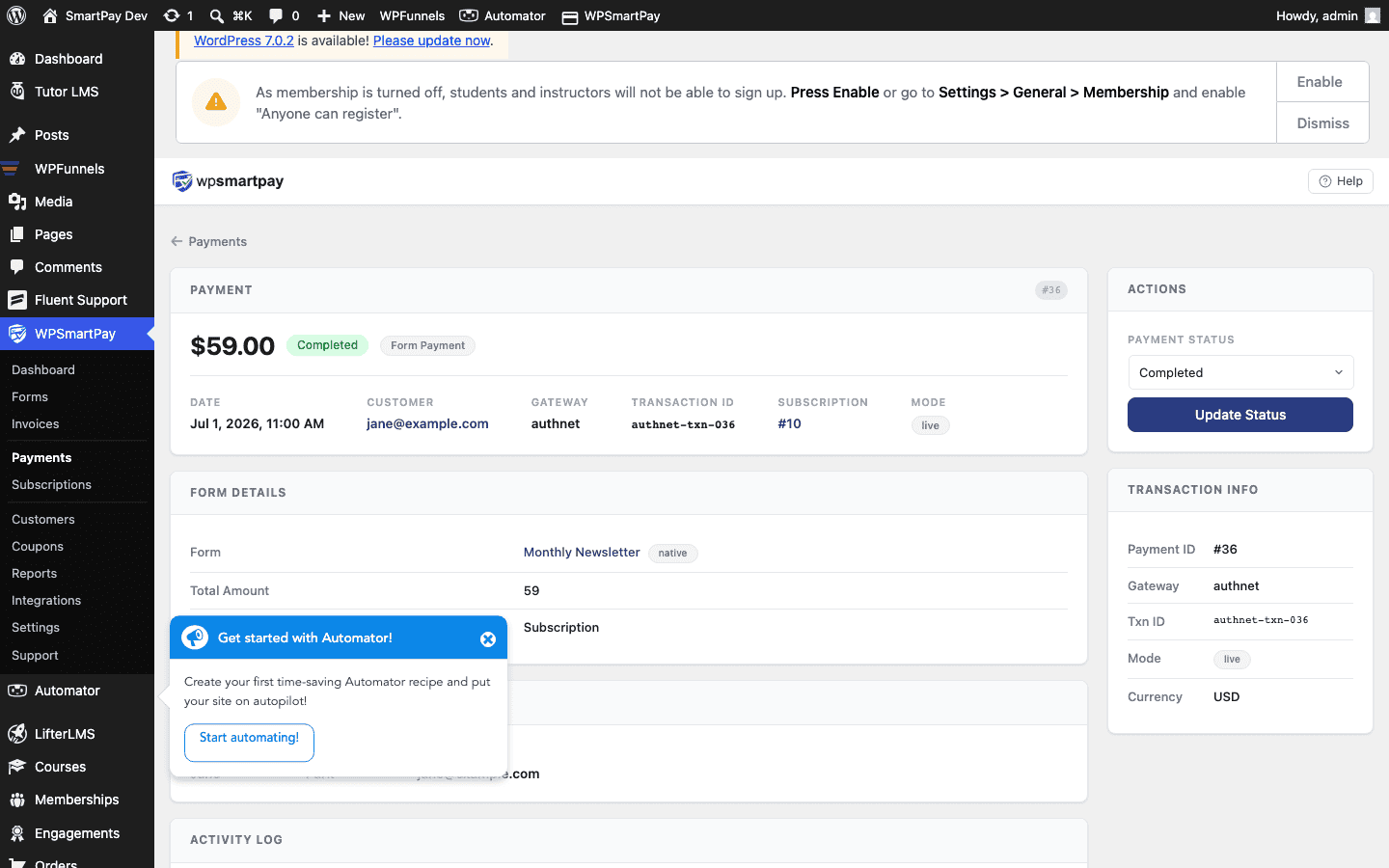
Manual Refunds (Other Gateways)
For gateways that don't have a SmartPay refund API (PayPal Standard, Razorpay, Mollie, etc.):
- Log in to your gateway dashboard and issue the refund there.
- Return to SmartPay's payment detail page.
- Click Mark as Refunded to update the payment status in SmartPay.
This two-step process keeps your SmartPay records in sync with what actually happened in the gateway.
Partial Refunds
When the Refund dialog opens you can change the amount to less than the full payment total. SmartPay records the partial refund amount in the activity log. The payment status changes to Refunded regardless of whether the refund was full or partial.
Status After Refund
After a refund is processed or marked manually, the payment status changes to Refunded and the refund amount is subtracted from the customer's lifetime revenue total in the customer record.
Customer Notification
SmartPay does not automatically send a refund notification email to the customer — you should communicate the refund directly, or customise the email notification settings at SmartPay → Settings → Emails if you have set up a refund email template.