
The WP SmartPay dashboard is the first screen you see after clicking SmartPay in your WordPress admin sidebar. It gives you an instant read on revenue, recent orders, and key metrics — all in one place.
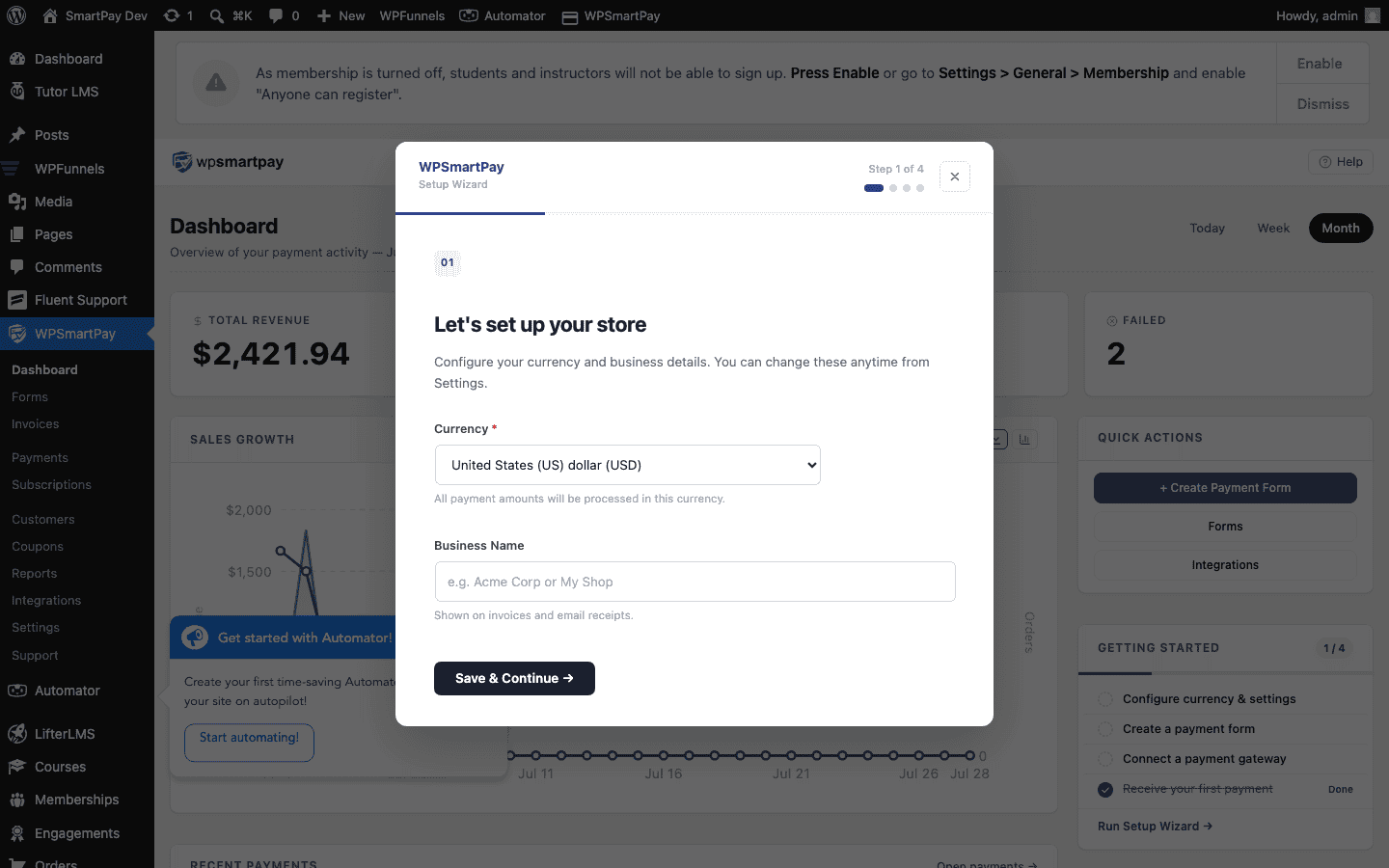
Stats Period Tabs
At the top of the dashboard you will find three time-period tabs: Today, This Week, and This Month. Clicking a tab instantly updates every stat card and chart below it — no page reload needed.
Stats Cards
Below the tabs, four cards show the key numbers for the selected period:
- Revenue — Total revenue from completed payments in the selected period.
- Orders — Number of completed payments (not pending or failed).
- Pending — Payments currently in a pending or processing state.
- Failed — Payments that failed or were abandoned.
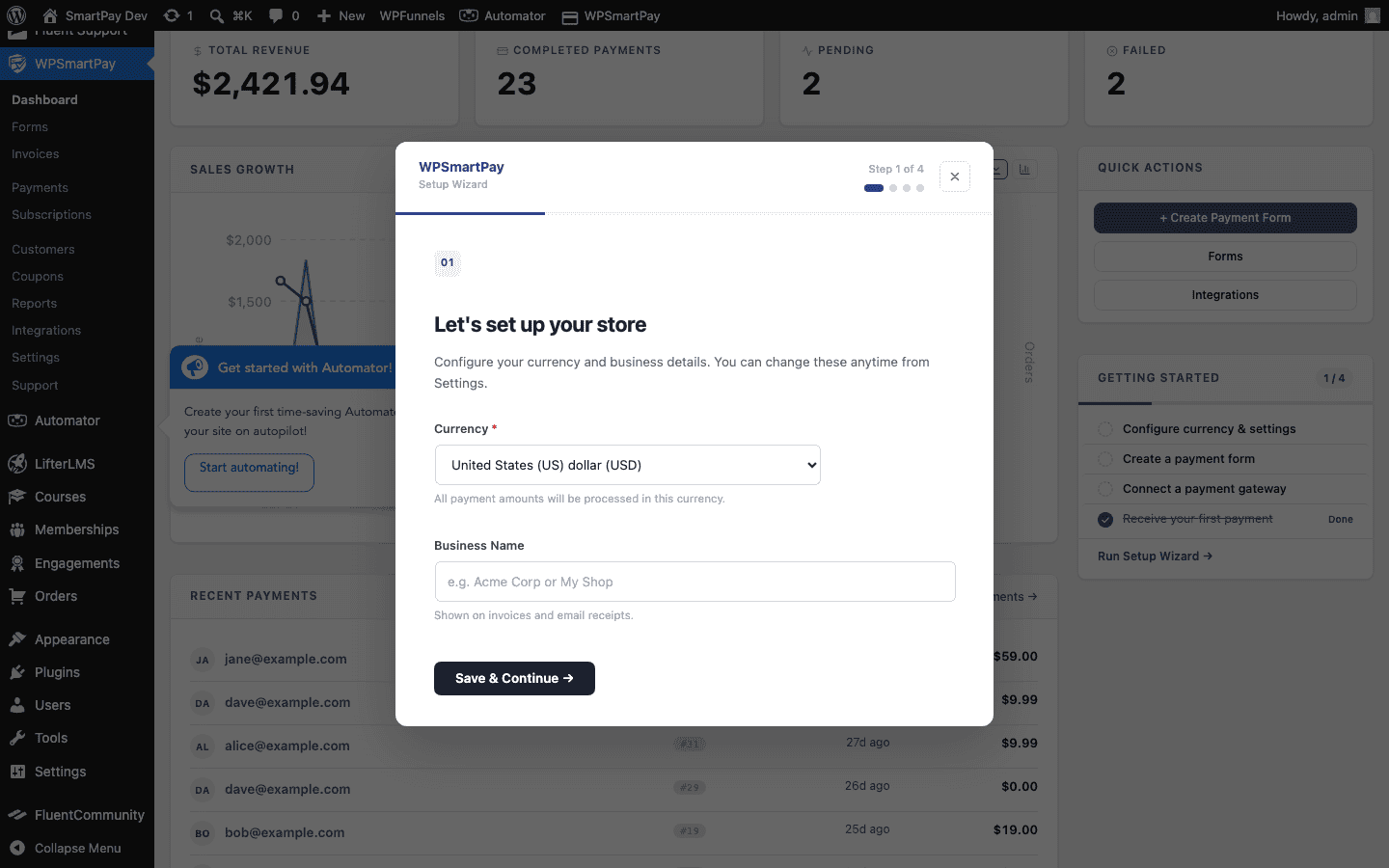
Revenue Chart
The bar chart displays revenue grouped by day (Today), day of week (This Week), or month (This Month). Each bar represents the total completed payment revenue for that period. Hovering over a bar shows the exact amount.
Recent Payments
Below the chart is a list of the most recent payments — typically the last 10 — showing the customer name, amount, gateway, and status. Clicking any row takes you to the full payment detail page.
Top Forms & Top Products
Two horizontal strips show which payment forms and digital products are generating the most revenue. Each entry shows the name and the total revenue earned in the selected period. Use this to identify your highest-performing content.
Quick Links Strip
A row of shortcut buttons near the bottom lets you jump to common sections without navigating the sidebar:
- Products — Your digital product catalogue.
- Forms — Payment form list.
- Customers — Full customer directory.
- Payments — Complete payment ledger.
- Coupons (Pro) — Discount code management.
- Settings — Plugin configuration.
All-Time Totals Strip
At the very bottom, three counters show lifetime site totals regardless of the selected period: total number of payment forms, total customers, and total digital products. These figures never reset and give you a long-term snapshot of your store's scale.
Tip: The dashboard only counts Completed payments in the revenue totals. Refunded, failed, or pending payments are excluded from Revenue and Orders — which means your revenue figures always reflect money actually received.