
Razorpay is a popular payment gateway for businesses in India. It supports credit/debit cards, UPI, net banking, wallets, and EMI — covering all major payment methods used by Indian customers. WP SmartPay Pro integrates Razorpay with its hosted checkout modal.
Prerequisites
- A Razorpay account. Business verification is required to go live.
- Your Razorpay Key ID and Key Secret from the Razorpay Dashboard.
- WP SmartPay Pro with a valid license.
- HTTPS on your site (required for live payments).
Country Availability
Razorpay is available to businesses registered in India. International customers can pay via card if you enable international payments in your Razorpay account settings.
Finding Your Razorpay API Keys
- Log in to your Razorpay Dashboard.
- Go to Settings → API Keys.
- Click Generate Test Key (for test keys) or Generate Key (for live keys — only available after account activation).
- Copy the Key ID and Key Secret.
Connecting Razorpay in SmartPay
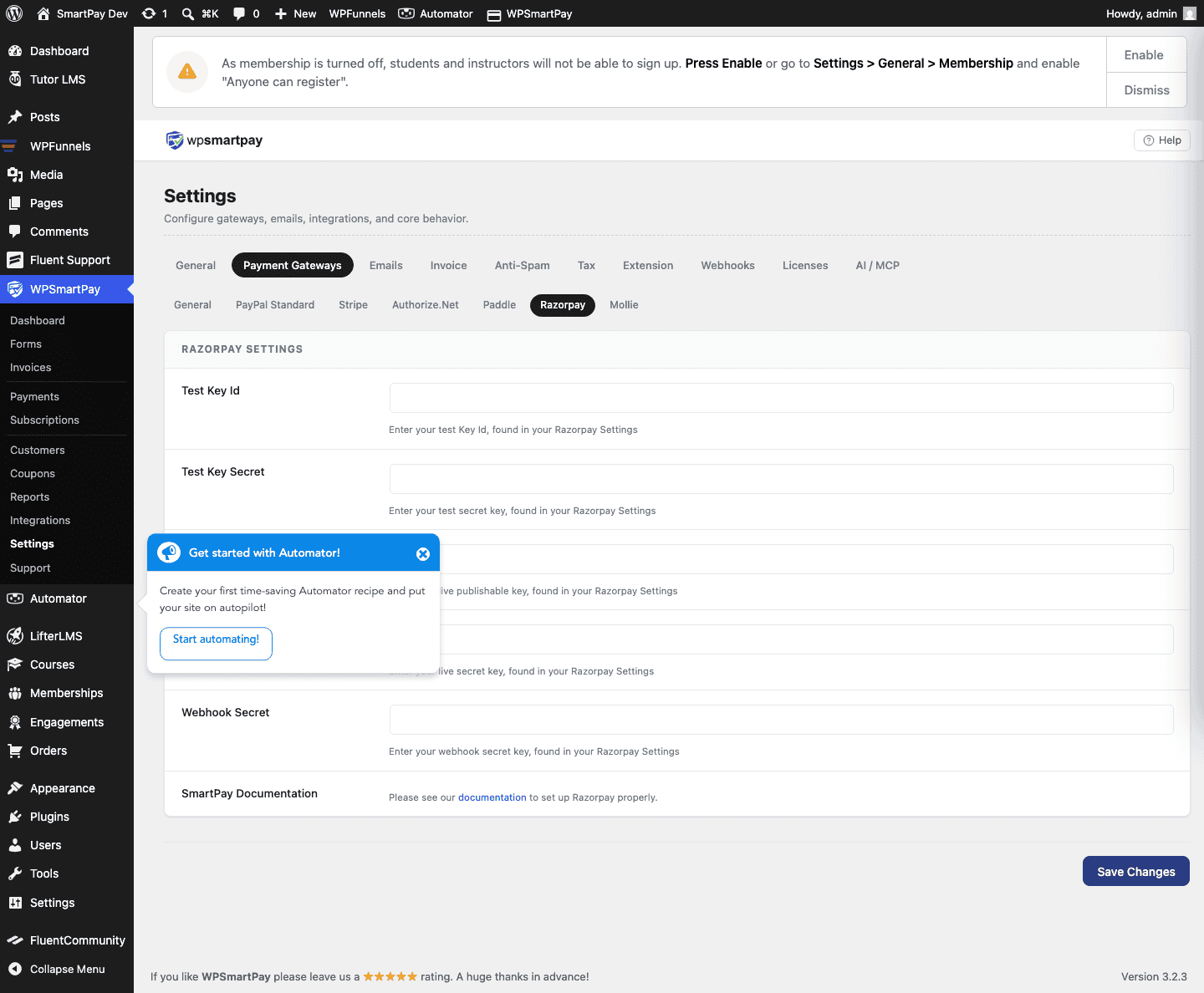
- Go to SmartPay → Settings → Payment Gateways.
- Find Razorpay and tick Enable.
- Enter your Live Key ID and Live Key Secret.
- Enter your Test Key ID and Test Key Secret.
- Click Save Settings.
Setting Up Razorpay Webhooks
- In your Razorpay Dashboard, go to Settings → Webhooks.
- Click Add New Webhook.
- Enter the URL:
https://yoursite.com/?smartpay-listener=razorpay - Enter a Secret and copy it for SmartPay settings.
- Select events: payment.captured, payment.failed, refund.created.
- Save the webhook.
Supported Payment Methods
- Visa, Mastercard, RuPay (credit/debit cards)
- UPI (Google Pay, PhonePe, Paytm, and all UPI apps)
- Net banking (50+ Indian banks)
- Wallets (Paytm, Mobikwik, Freecharge, Airtel)
- EMI (credit card EMI and cardless EMI)
Supported Currencies
Indian Rupee (INR) for domestic payments. International card payments in USD, EUR, GBP, and other major currencies (requires enabling international payments in Razorpay).
Test Mode Configuration
Toggle Test Mode on in SmartPay. Use Razorpay's test credentials and the following test card:
- Card:
4111 1111 1111 1111| Expiry: any future date | CVV: any 3 digits - For UPI test: use success (
success@razorpay) or failure (failure@razorpay) virtual UPI IDs.
Common Errors & Fixes
- "Key authentication failed" — Key ID or Secret is incorrect or from the wrong environment (test vs live).
- Order not created — Check that your Razorpay account is fully verified and activated.
- Payment stuck at Pending — Webhook not configured or secret mismatch.