
Test Mode & Live Mode
WP SmartPay has a built-in Test Mode that lets you run complete payment flows — form submission, gateway processing, receipt, and notifications — without moving any real money. Use Test Mode during development and switch to Live Mode only when your store is ready for real customers.
Enabling Test Mode
- Go to SmartPay → Settings → Payment Gateways.
- At the top of the page, toggle Test Mode to on.
- Click Save Settings.
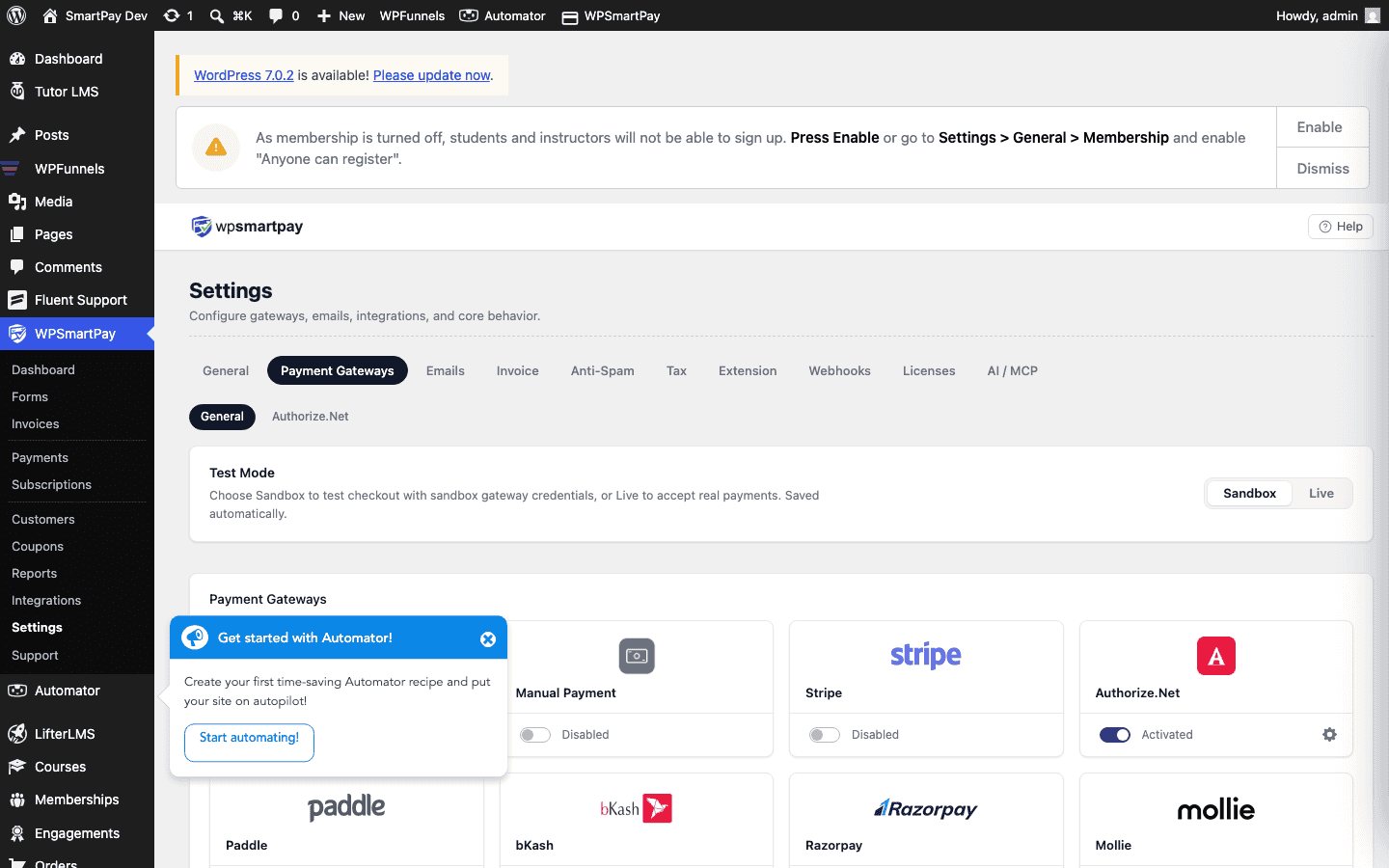
When Test Mode is on, a yellow banner appears in the admin sidebar and on the checkout form warning that no real payments are being processed.
Test Credentials per Gateway
Each gateway has separate fields for live and test credentials. In Test Mode SmartPay reads the test credentials; in Live Mode it reads the live credentials. Enter both sets so you can switch back and forth without re-entering keys.
Stripe Test Credentials
Log in to your Stripe dashboard and toggle to Test mode (top-right toggle). Copy the Test Publishable Key and Test Secret Key into SmartPay's Stripe settings under the Test fields.
Stripe Test Card Numbers
| Card Number | Result |
|---|---|
4242 4242 4242 4242 | Always succeeds |
4000 0000 0000 0002 | Always declines |
4000 0025 0000 3155 | Requires 3D Secure authentication |
Use any future expiry date and any 3-digit CVC.
PayPal Sandbox
Create a PayPal sandbox account and use the sandbox email as your PayPal email in SmartPay's test credentials.
Mollie Test Mode
Mollie provides a test API key starting with test_ in your Mollie dashboard. Enter it in SmartPay's Mollie test key field.
Test Payments in the Admin
Payments made in Test Mode appear in SmartPay → Payments alongside live payments, but are labelled with a Test mode badge. To see only test payments, use the Mode: Test filter on the Payments list.
Switching to Live Mode Checklist
- Go to SmartPay → Settings → Payment Gateways.
- Confirm your live API keys are entered in the Live fields (not test keys).
- Toggle Test Mode off.
- Click Save Settings.
- Make one real low-value test payment (e.g., $1) to confirm the live integration works.
- Check your gateway dashboard to confirm the payment appears there.
Warning: Never use live API keys in Test Mode or test API keys in Live Mode. Mixing them will cause all payment attempts to fail.