
Payment Recovery Report
The WP SmartPay Pro Recovery report tracks failed and abandoned payments — and shows how much revenue was recovered through gateway retries or follow-up actions. Use it to identify customers whose billing is failing and quantify the revenue impact.
Opening the Recovery Report
- Go to SmartPay → Reports.
- Click the Recovery tab.
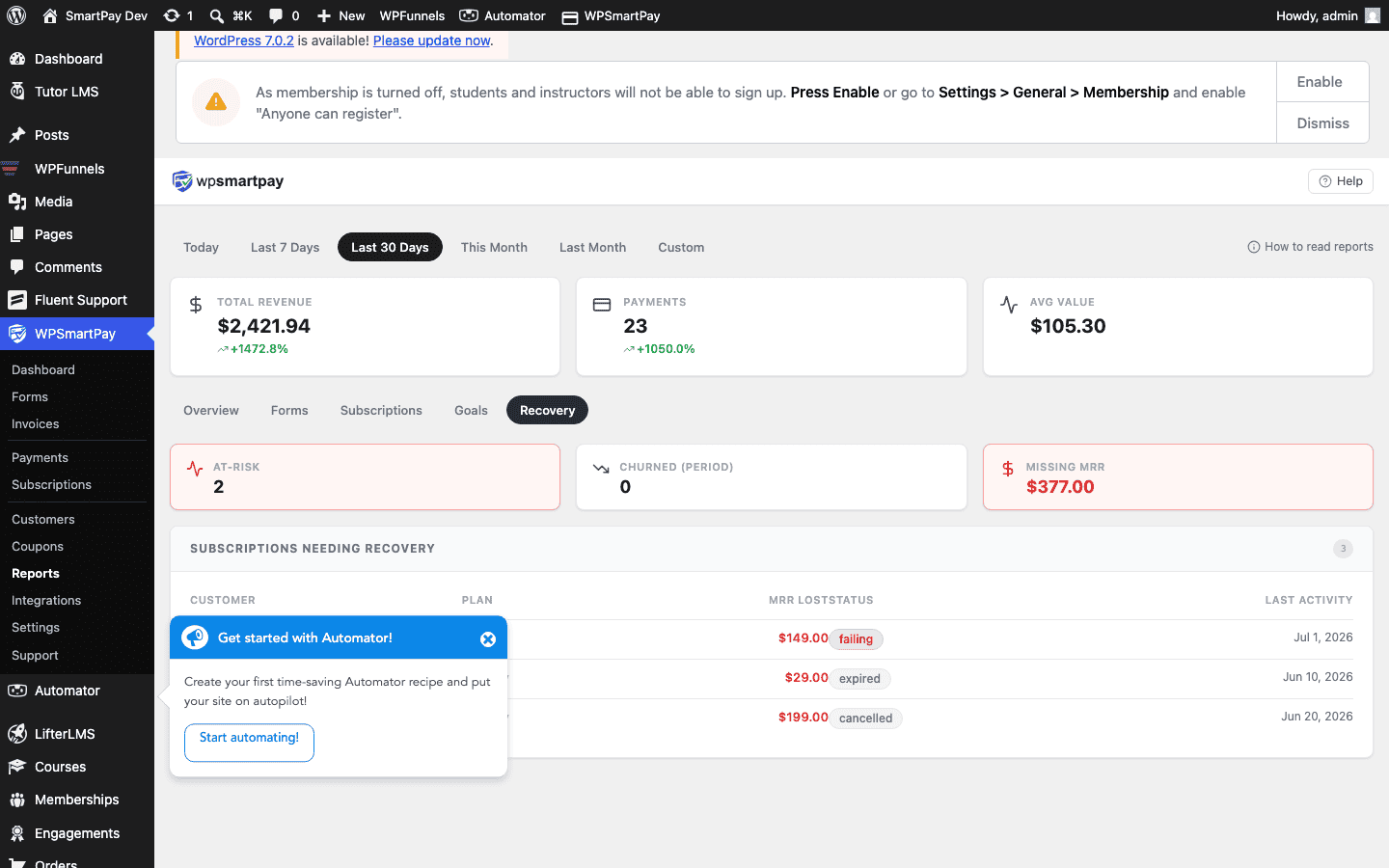
What the Report Shows
- Revenue at Risk — Total amount of failed or failing subscription renewals in the selected period. This is the maximum recoverable amount if all retries succeed.
- Revenue Recovered — Amount from failed payments that were subsequently recovered through gateway retries or customer card updates.
- Recovery Rate — Recovered ÷ At Risk × 100. A higher rate indicates effective gateway retry logic.
Failed Payment List
The table below the summary cards lists individual failed or abandoned payment records with:
- Customer — Name and email of the customer with a failed charge.
- Amount — The amount that failed to process.
- Subscription — If it was a subscription renewal failure, a link to the subscription record.
- Failed Date — When the failure occurred.
- Status — Failing (gateway retrying), Recovered (subsequent retry succeeded), or Lost (all retries exhausted, subscription cancelled).
Manual Follow-Up Actions
For subscriptions with status Failing:
- Click the customer's email to open their customer profile.
- Note the customer's email address.
- Contact the customer directly (outside SmartPay) asking them to update their payment method in the Stripe Customer Portal.
- Once they update their card, the next gateway retry will succeed and the subscription status returns to Active.
Tip: Proactive outreach within the first 24–48 hours of a failure significantly improves recovery rates. Customers often have expired cards but have no idea a charge failed until you tell them.