
Customer List
The WP SmartPay customer list gives you a directory of every person who has made a payment through your site. From here you can search for customers, see their purchase history at a glance, and open a full customer profile.
Opening the Customers List
Go to SmartPay → Customers in your WordPress admin sidebar.
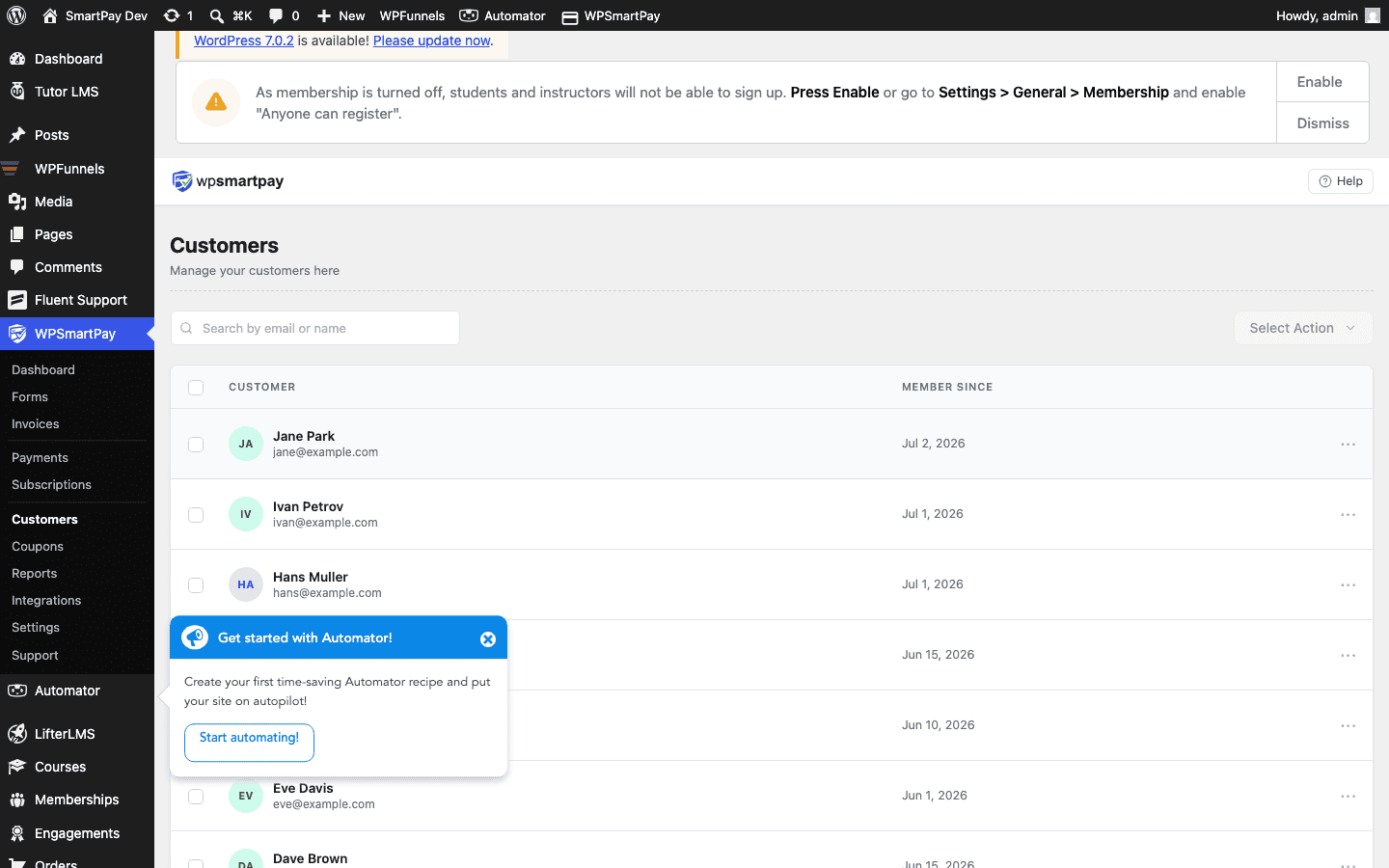
Column Overview
- Name — Customer's display name. Click to open the customer detail page.
- Email — The email used at checkout. All payments from this email are grouped under one customer record, even if the customer pays through multiple forms.
- Payments — Total number of completed payments from this customer.
- Revenue — Lifetime total of completed payments in your store currency.
- Date — When the customer record was first created (their first payment).
Searching Customers
Use the search bar at the top to find a customer by:
- Full or partial name
- Email address (partial match supported)
Results update as you type.
Sorting
Click any column header to sort the list. Sorting by Revenue descending identifies your highest-value customers. Sorting by Date ascending shows who your earliest customers were.
Customer Records vs WordPress Users
SmartPay creates a customer record for every unique email address that pays through the plugin, regardless of whether that person has a WordPress user account. Customers without a WP account can still pay through any form — they are not required to log in unless Require Login is enabled on the specific form they are using.
Note: If a customer pays with two different email addresses, SmartPay creates two separate customer records. There is no automatic merge — you would need to update payments manually if the customer requests consolidation.