
WP SmartPay sends automated emails to customers and admins when payments are processed, subscriptions change, and invoices are issued. All email templates are configurable at SmartPay → Settings → Emails.
Opening Email Settings
Go to SmartPay → Settings → Emails.
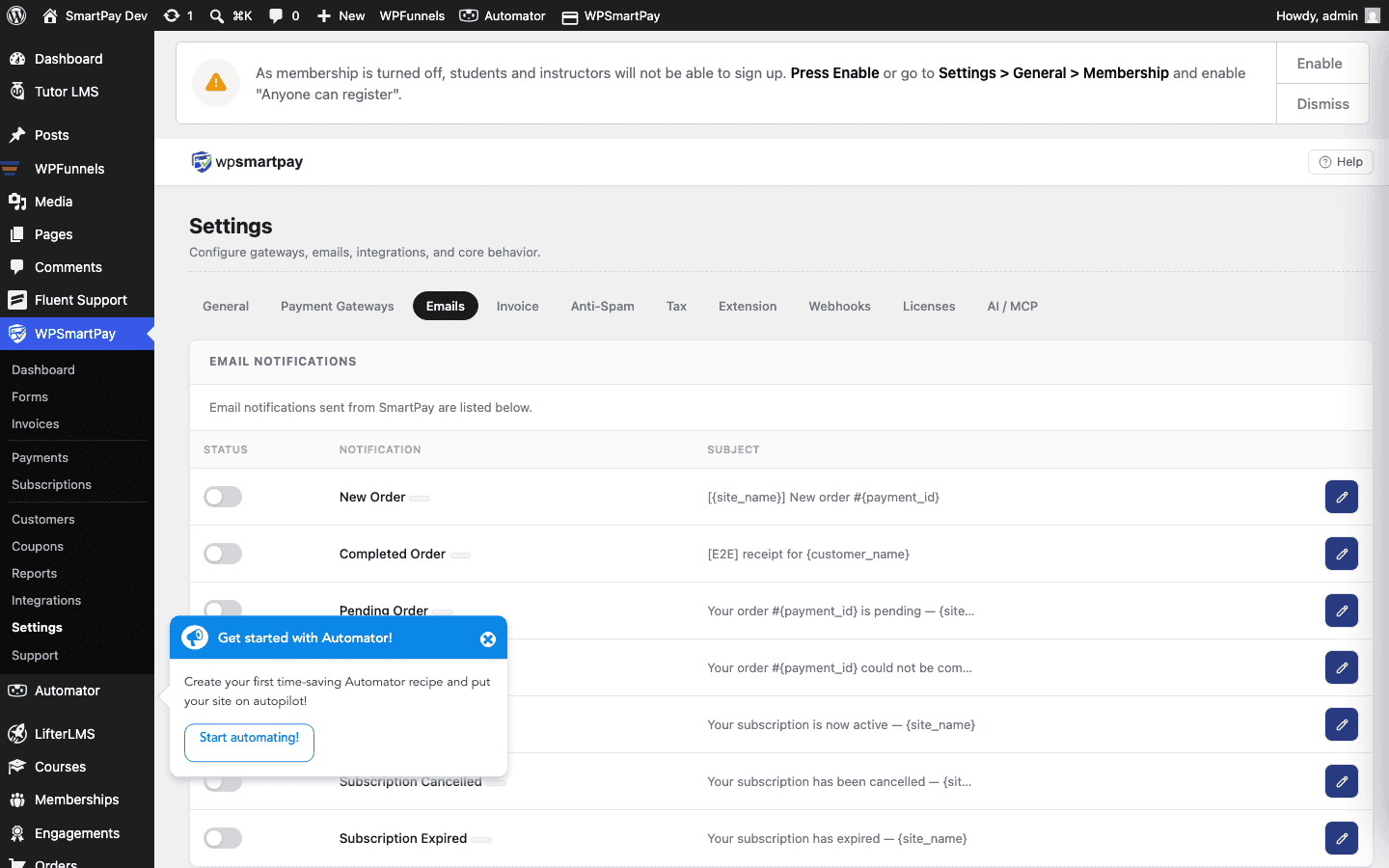
Global Email Settings
- From Name — The sender name that appears in the recipient's inbox (e.g., "WP SmartPay" or your business name).
- From Email — The sender email address. Should match your domain to avoid spam filters (e.g.,
hello@yourdomain.com). Avoid using@gmail.comor free email providers as a From address. - Email Header Image — Optional logo or banner image displayed at the top of HTML emails.
- Email Footer Text — Text appended to the bottom of every outgoing email — your address, unsubscribe note, or legal text.
Available Email Templates
Payment Receipt (Customer) — Free
Sent to the customer after every successful payment. Contains the payment amount, date, and form/product name.
New Payment Notification (Admin) — Free
Sent to the admin email when a new completed payment is recorded. Includes customer details and payment amount. Useful for small stores that want immediate notification of every sale.
Payment Complete (Customer) — Pro
An extended template with customisable subject and body. Includes merge tags for personalisation.
Subscription Renewal (Customer) — Pro
Sent when a subscription renewal payment succeeds.
Subscription Cancelled (Customer) — Pro
Sent when a subscription is cancelled, either by the admin or by the customer.
Invoice Sent (Customer) — Pro
Sent when you click Send Invoice on a Pro invoice. Includes the invoice public link so the customer can view and pay.
Merge Tag Variables
Use these merge tags in email subject and body fields to personalise content:
| Merge Tag | Replaces With |
|---|---|
{customer_name} | Customer's name |
{customer_email} | Customer's email |
{payment_amount} | Payment total with currency symbol |
{payment_id} | Payment reference number |
{payment_date} | Date of the payment |
{form_name} | Name of the payment form |
{site_name} | Your WordPress site name |
{site_url} | Your site URL |
{receipt_link} | URL of the payment receipt page |
Enabling and Disabling Individual Emails
Each email template has an Enable checkbox. Untick to stop that specific email from being sent. For example, you might disable the admin new-payment notification if you are using a webhook to Slack instead.
Testing Emails
Click Send Test Email on any template to receive a sample with placeholder data. Use this to confirm deliverability before going live.