
The Gateway Settings page in WP SmartPay is where you enable payment gateways, enter API credentials, and control test vs live mode for your entire store. Every gateway available to your site is listed here.
Opening Gateway Settings
Go to SmartPay → Settings → Payment Gateways.
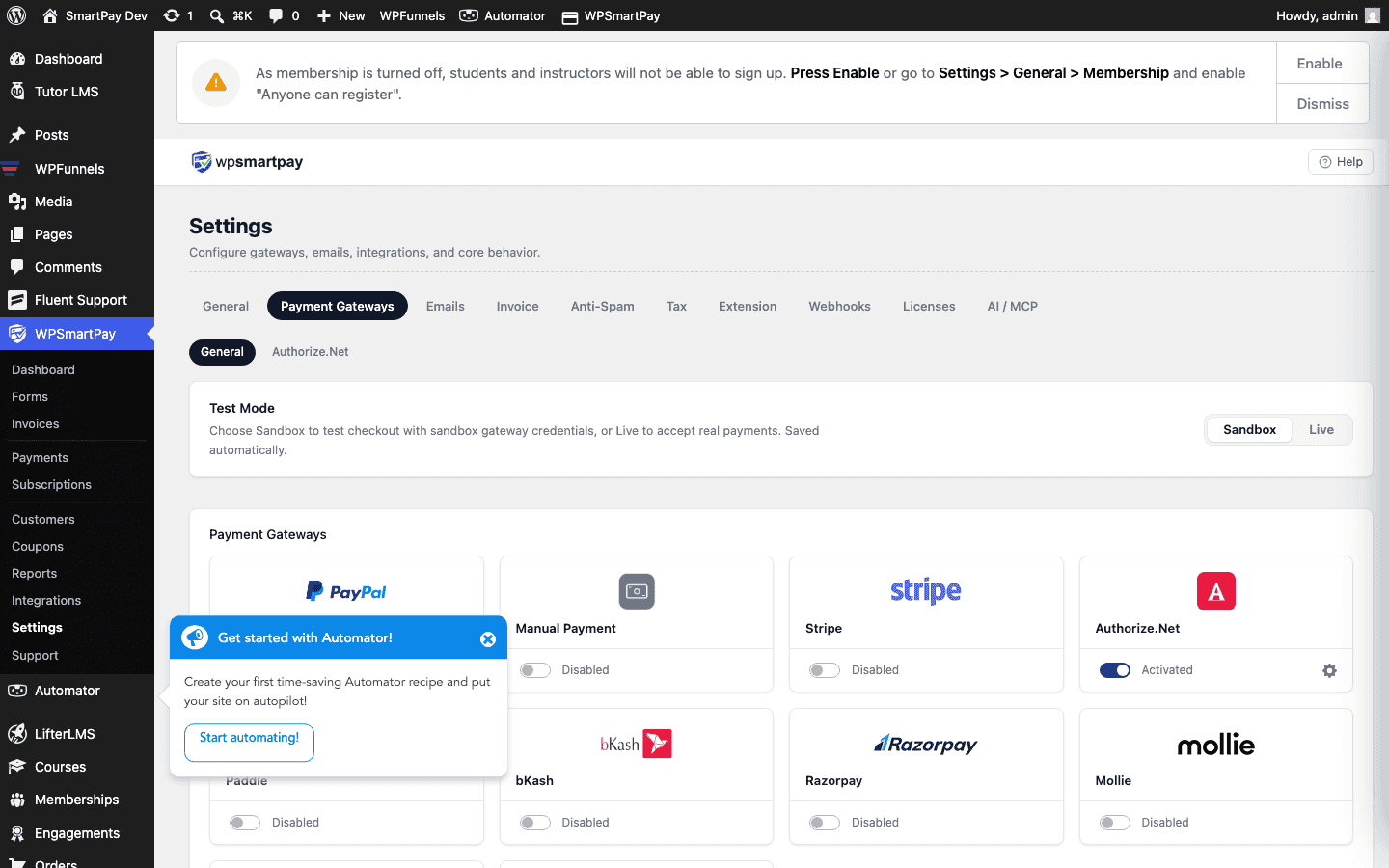
Test Mode Toggle
At the top of the page is the Test Mode toggle. When on:
- All payment forms use test/sandbox credentials.
- Payments are simulated — no real money moves.
- A yellow banner appears in the admin sidebar as a reminder.
- Payments recorded in test mode are labelled Test in the Payments list.
Toggle this off only when you are ready to accept real payments from customers.
Default Gateway
The Default Gateway dropdown sets which gateway is pre-selected on forms that support multiple active gateways. Customers can still choose a different gateway at checkout if the form has more than one active.
Enabling a Gateway
Each gateway has an Enable checkbox. Tick it to make the gateway available on payment forms and to show its configuration fields. Untick it to disable the gateway — existing payment records are not affected.
Gateway Credentials
Below each enabled gateway's header is a section for entering API credentials. Most gateways require two sets:
- Live credentials — Used when Test Mode is off. Real money is processed.
- Test credentials — Used when Test Mode is on. Sandbox/test transactions only.
Enter both so you can switch between modes without re-entering keys. Credentials are stored encrypted in the WordPress database.
Gateway Display Order
If multiple gateways are active on a form, the customer sees a gateway selector at checkout. Drag the gateway cards in the Gateway Settings list to set the display order. The gateway at the top of the list appears first in the selector.
PayPal Standard (Free)
PayPal Standard is included in the free SmartPay plugin. Enter your PayPal email address in the test and live fields. No API keys are needed — PayPal uses your email to identify the receiving account.
Stripe, Paddle, and Others (Pro)
All other gateways require WP SmartPay Pro and individual API keys from each gateway's developer dashboard. See the individual gateway setup guides for step-by-step instructions for each processor.