
Stripe is the most popular payment gateway in WP SmartPay Pro. It processes credit/debit cards directly on your site (no redirect to a third-party page), supports recurring subscriptions, and offers Smart Retries for failed renewals. Stripe is available to businesses in 40+ countries.
Prerequisites
- A Stripe account (free to create; verify your identity and banking details to activate live payments).
- WP SmartPay Pro active with a valid license.
- HTTPS on your site (required by Stripe for live card collection).
Finding Your Stripe API Keys
- Log in to your Stripe Dashboard.
- Go to Developers → API Keys.
- Copy the Publishable key and Secret key.
- For test keys, toggle Test mode in the Stripe Dashboard (top-right) and copy the test keys.
Connecting Stripe in SmartPay
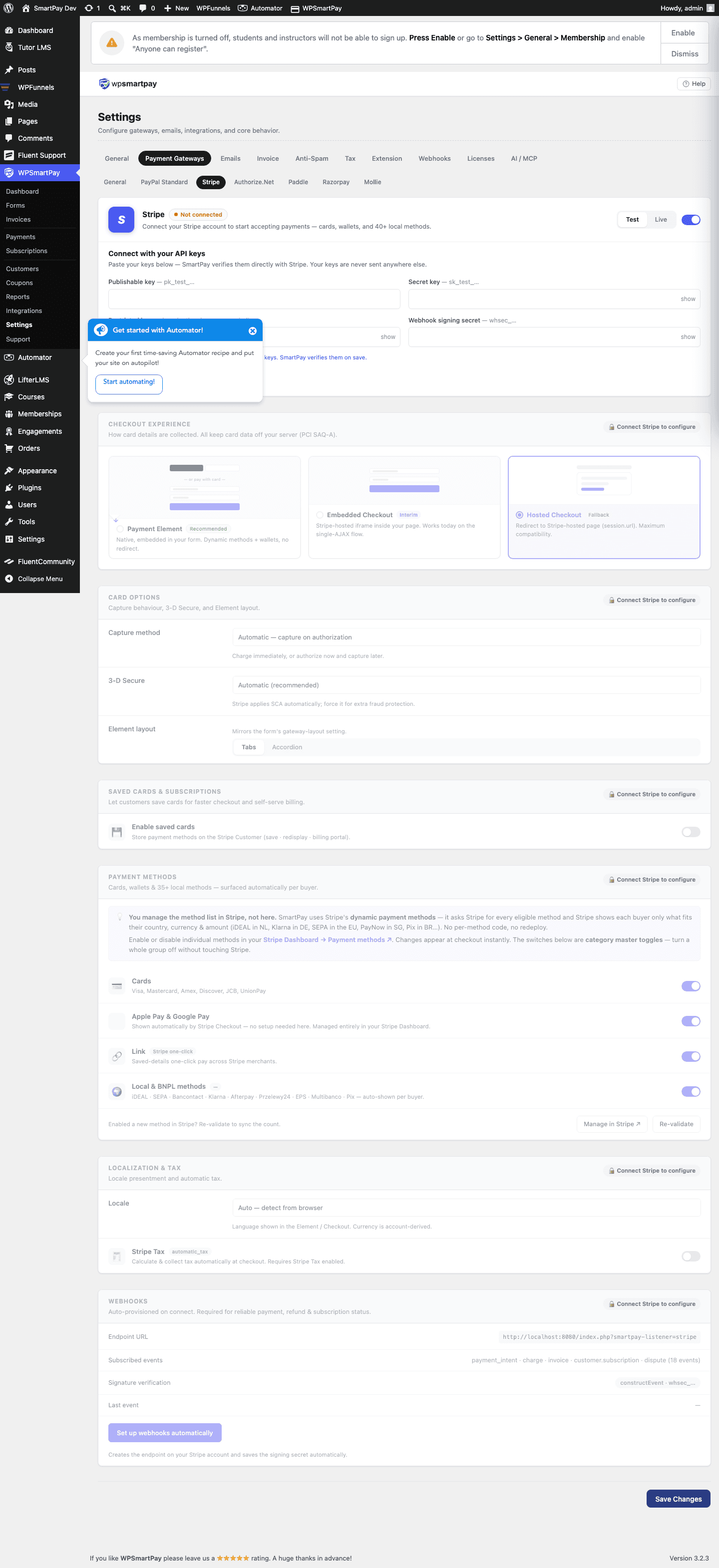
- Go to SmartPay → Settings → Payment Gateways.
- Find Stripe and tick Enable.
- Paste your Live Publishable Key and Live Secret Key.
- Paste your Test Publishable Key and Test Secret Key.
- Click Save Settings.
Setting Up Stripe Webhooks
Stripe uses webhooks to notify SmartPay of payment events (completion, failure, refund, subscription renewal). Without webhooks, payments may stay in Pending status indefinitely.
- In your Stripe Dashboard, go to Developers → Webhooks.
- Click Add endpoint.
- Enter your SmartPay webhook URL:
https://yoursite.com/?smartpay-listener=stripe - Under Select events, choose Select all events or at minimum:
payment_intent.succeededpayment_intent.payment_failedcustomer.subscription.deletedinvoice.paidinvoice.payment_failedcharge.refunded
- Click Add endpoint.
- Copy the Webhook Signing Secret and paste it into SmartPay's Stripe settings.
Test Mode Configuration
Toggle Test Mode on in SmartPay Gateway Settings. Use these test card numbers at checkout:
| Card Number | Result |
|---|---|
4242 4242 4242 4242 | Always succeeds |
4000 0000 0000 0002 | Always declines (insufficient funds) |
4000 0025 0000 3155 | Requires 3D Secure |
Use any future expiry date and any 3-digit CVC.
Supported Payment Methods
- Visa, Mastercard, American Express, Discover, JCB, UnionPay
- Apple Pay and Google Pay (on supported devices/browsers)
- SEPA Direct Debit (EUR)
- iDEAL (Netherlands)
Supported Currencies
Stripe supports 135+ currencies. Your store currency in SmartPay General Settings must match a currency your Stripe account is configured to accept.
Common Errors & Fixes
- "No such payment_intent" — Publishable and secret keys are mismatched (e.g., live publishable with test secret). Use keys from the same environment.
- Payments stuck at Pending — Webhook not set up or signing secret incorrect. Verify the webhook endpoint URL and secret in Stripe Dashboard.
- "Your card was declined" — In test mode, use test card
4242…. In live mode, the customer's card was declined by their bank. - Webhook signature verification failed — Signing secret in SmartPay does not match the one shown in Stripe's webhook details. Re-copy the signing secret.