
Anti-Spam Checkout (Pro)
Spam bots that submit payment forms with fake emails waste your integrations, trigger unwanted email notifications, and pollute your payment records. WP SmartPay Pro provides built-in anti-spam protection at the checkout form level through honeypot fields and CAPTCHA integration hooks.
Built-In Honeypot
All SmartPay payment forms include a hidden honeypot field by default. Human visitors never see or fill it; bots that blindly fill all form fields trigger the trap and their submission is silently rejected. No configuration is needed — this protection is always on.
CAPTCHA Integration (Pro)
Pro adds CAPTCHA validation hooks at the form render and submission stages. These hooks let compatible CAPTCHA plugins insert their challenge widget and enforce validation before the payment is processed.
Enabling CAPTCHA
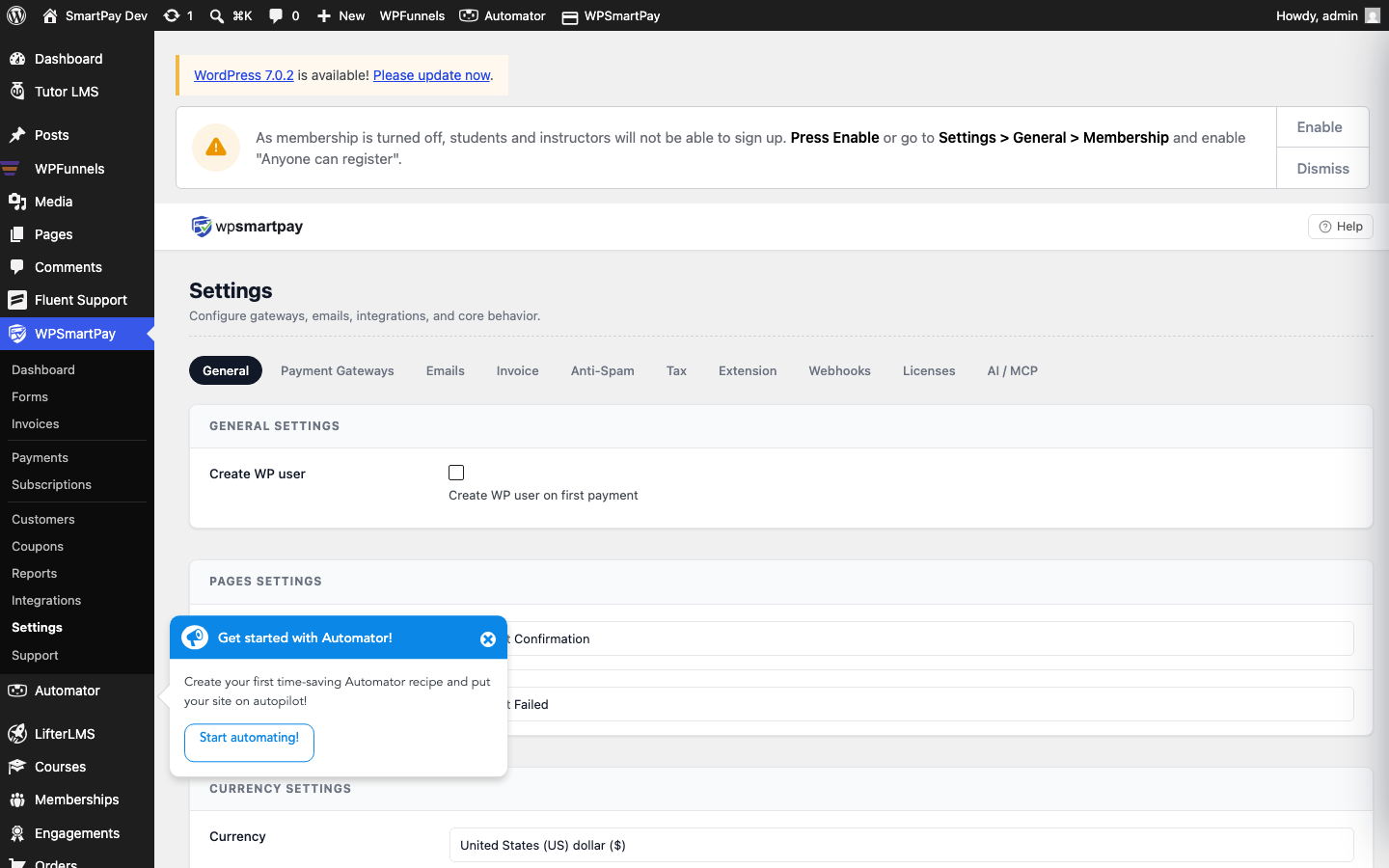
- Go to SmartPay → Settings → Anti-Spam.
- Toggle on the CAPTCHA provider you want to use.
- Enter the site key and secret key from your CAPTCHA provider's dashboard.
- Save settings.
Compatible CAPTCHA Providers
- Google reCAPTCHA v2 ("I'm not a robot" checkbox)
- Google reCAPTCHA v3 (invisible, score-based)
- hCaptcha
- Cloudflare Turnstile
Per-Form vs Global
CAPTCHA can be applied globally to all forms or selectively per form. To disable CAPTCHA on a specific form (e.g., for a member-only checkout where users are already logged in):
- Open the form in the editor.
- In the Options sidebar panel, find Anti-Spam.
- Toggle Disable CAPTCHA for this form only.
What Happens When Spam Is Detected
- Honeypot triggered — The submission is silently dropped. No error shown (avoids tipping off the bot).
- CAPTCHA failed — The customer sees an error message asking them to complete the CAPTCHA before trying again. The payment is not processed.
Note: If you are using reCAPTCHA v3 and legitimate users are being blocked (false positives), lower the score threshold in Anti-Spam settings or switch to reCAPTCHA v2, which requires explicit human interaction.