
The Manual / Offline gateway in WP SmartPay lets customers submit a payment form without any real-time card processing. Instead, the form collects their details and signals intent to pay — you then collect payment separately (bank transfer, cash, cheque, etc.) and mark the payment completed in the admin.
When to Use Manual Payments
- Bank transfer or wire payment acceptance
- Cash on delivery arrangements
- Cheque payments by mail
- Purchase order (PO) workflows where invoicing comes before payment
- Internal recording of offline transactions
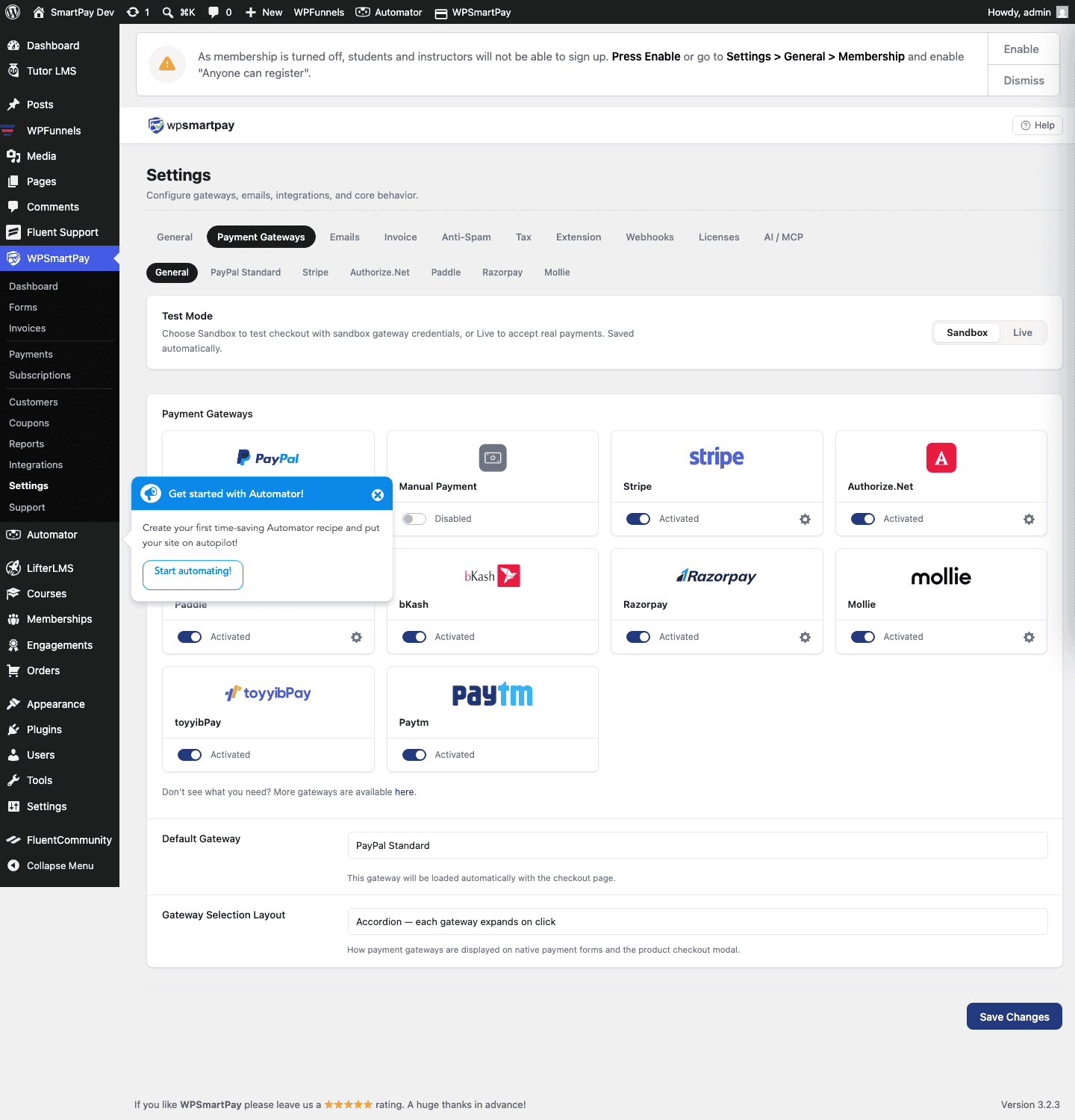
Enabling Manual Payments
- Go to SmartPay → Settings → Payment Gateways.
- Find Manual / Offline and tick Enable.
- Enter an Instructions message — this is displayed to the customer at checkout and on their payment receipt. Use it to tell them how to send payment (e.g., "Please transfer to Bank Account: IBAN XX00 … Reference: Your Order ID").
- Click Save Settings.
Customer Experience
- The customer fills in their name and email on the payment form.
- They click the pay button.
- SmartPay creates a payment record with status Pending.
- The customer sees the instructions you entered — telling them how to send payment.
- They receive a receipt email with the same instructions.
Completing the Payment
Once you confirm payment has been received outside SmartPay:
- Go to SmartPay → Payments and find the pending payment.
- Open the payment detail page.
- Click Mark as Completed.
The payment status changes to Completed. Any integrations tied to the payment (LMS enrolment, email sync, invoice, webhook) fire at this point — not when the form was submitted.
No API Keys Required
The Manual gateway requires no API credentials. It is available in both the free and Pro versions of WP SmartPay. Pro adds the ability to create manual payments directly from the admin (SmartPay → Payments → New Payment) without requiring a customer to submit a form.
Tip: Use Manual payments with the Pro Invoice feature — create an invoice, send it to the customer, and let them pay via bank transfer. When you receive payment, mark the invoice Paid and the SmartPay payment status updates automatically.