
Embedding Forms on Pages
Once you have created a payment form in WP SmartPay, you embed it on any WordPress page or post using a shortcode or a dedicated Gutenberg block. This guide covers both methods.
Finding the Shortcode
Go to SmartPay → Forms. In the forms list, each row has a Shortcode column showing the form's embed code in the format [sp_form id="123"].
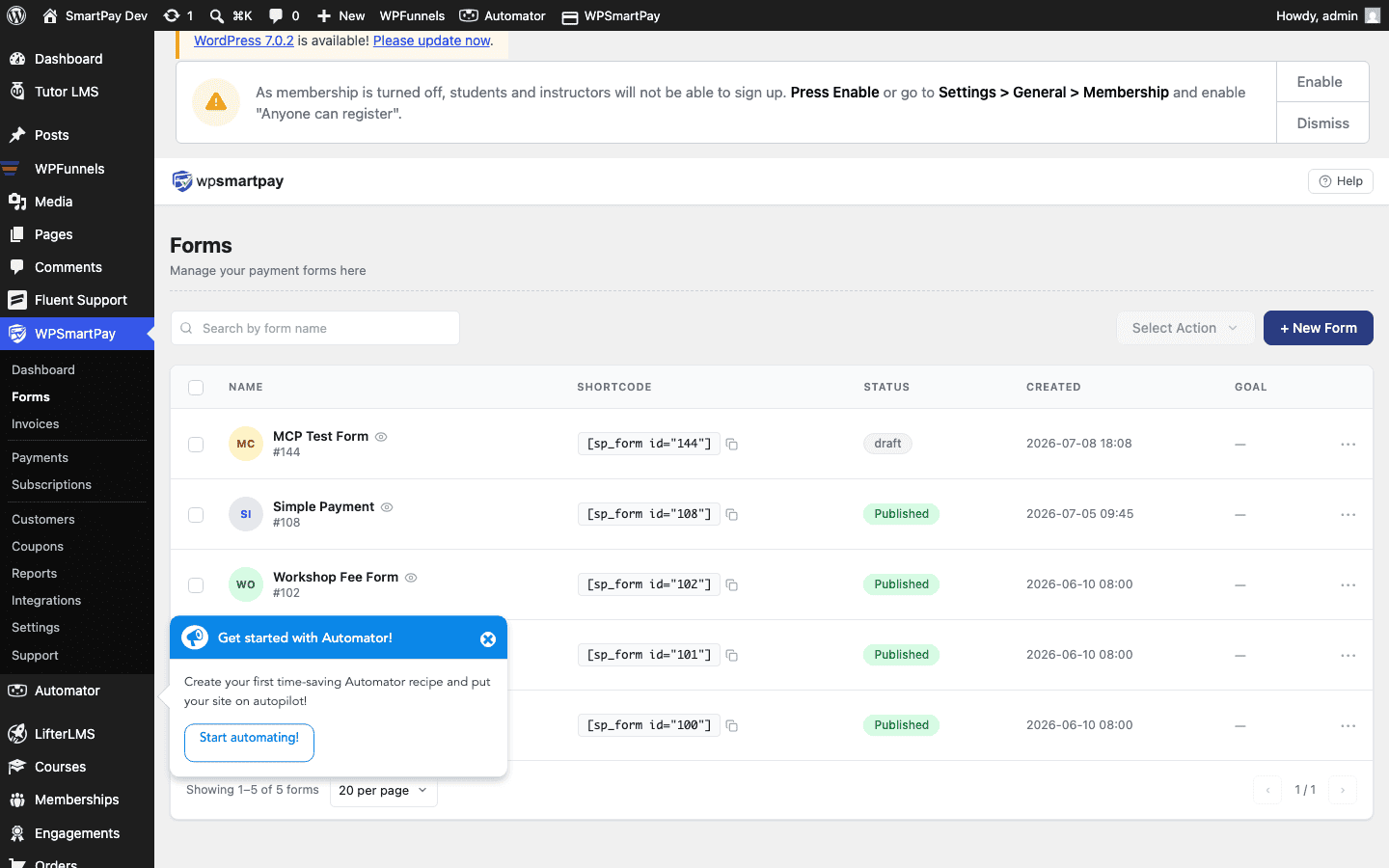
Click the shortcode to copy it to your clipboard.
Method 1 — Gutenberg Shortcode Block
- Open the page or post you want to embed the form on.
- In the Gutenberg block editor, click the + button to add a block.
- Search for Shortcode and select it.
- Paste the shortcode (e.g.
[sp_form id="42"]) into the block. - Click Update or Publish.
Note: The Shortcode block does not render a preview in the editor — it shows the raw shortcode text. Visit the published page to see the form.
Method 2 — WP SmartPay Form Block
- In the block editor, click the + button and search for SmartPay Form.
- Select the WP SmartPay Form block.
- In the block's dropdown, choose the form you want to embed.
- The editor shows a live preview of the form inside the block.
- Click Update or Publish.
The SmartPay Form block is the recommended method for Gutenberg sites — you get a visual preview and can select the form from a friendly dropdown instead of typing a shortcode.
Classic Editor (TinyMCE)
If you are using the Classic Editor plugin:
- Paste the shortcode directly into the post content area.
- Make sure you are in Text mode (not Visual mode) if the shortcode is not rendering.
- Click Update.
Full-Page Embed vs Inline Embed
You can embed the form anywhere on a page — in the middle of content, in a sidebar widget, or as the sole element on a dedicated page. SmartPay's checkout CSS adapts to the container width.
For a cleaner experience, many sites create a dedicated "Donate" or "Buy Now" page with only the form on it. This keeps the URL shareable and the layout uncluttered.
Legacy Shortcode
Older versions of WP SmartPay used [smartpay_form id="123"]. This shortcode still works but [sp_form id="123"] is the current standard. Both are equivalent.