
Selling access to premium content — a members-only area, a private course community, or exclusive resources — requires two things: a way to collect recurring payments, and a way to restrict who sees what. WP SmartPay Pro handles the payment side; WordPress membership plugins handle the access side. Together they form a clean membership system without custom code.
Scenario
A fitness coach offers a monthly membership ($29/month) that grants access to a private workout library and weekly live session replays. New members sign up via a payment form, gain immediate access, and lose it if their subscription is cancelled or payment fails.
What You Need
- WP SmartPay Pro (subscription billing + webhooks)
- A membership plugin: Restrict Content Pro, WishList Member, or LearnDash (all have SmartPay integrations)
- A gateway that supports recurring billing: Stripe, Mollie, or Paddle
Step 1: Create the Membership Level
In your membership plugin, create a membership level (e.g., "Fitness Pro Member"). Assign restricted content — pages, posts, course modules — to this level.
Step 2: Build a Subscription Payment Form
- Go to SmartPay → Forms → Add New.
- Set the price to $29 with a Monthly billing period.
- Optionally add a 7-day free trial to reduce sign-up friction.
- Publish the form and embed it on a "Join" or "Pricing" page.
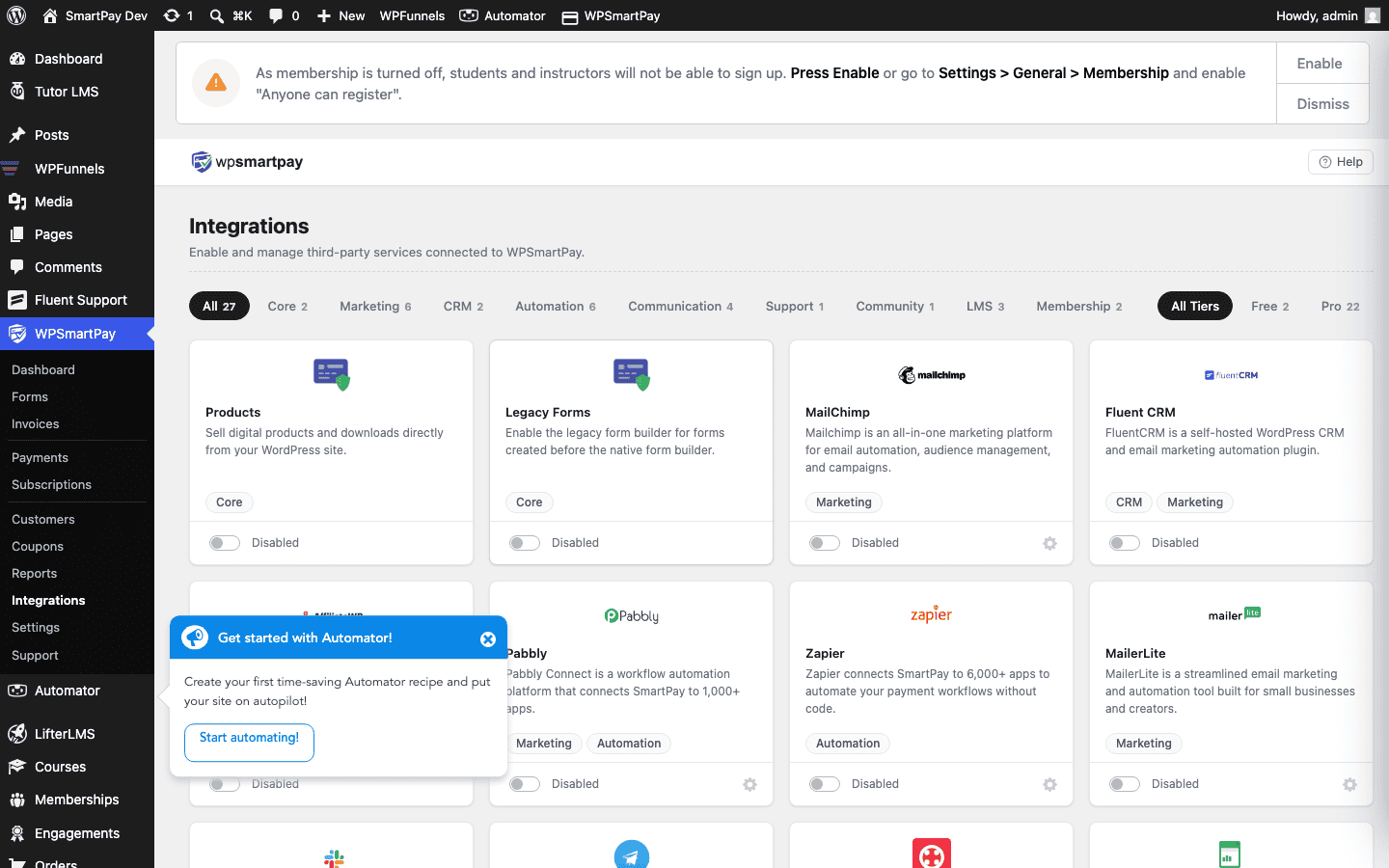
Step 3: Connect SmartPay to Your Membership Plugin
- Go to SmartPay → Extensions.
- Find your membership plugin (Restrict Content Pro, WishList Member, etc.) and click Settings.
- Map the SmartPay subscription form to the membership level you created in Step 1.
- Save settings.
Step 4: Test the Flow
- Enable Test Mode in SmartPay General Settings.
- Submit the form using a test card.
- Verify the new subscriber appears in SmartPay → Subscriptions with Active status.
- Verify the user gains access to restricted content in your membership plugin.
- In SmartPay, cancel the test subscription and verify access is revoked.
How Access Changes Are Handled
| Event | SmartPay action | Membership result |
|---|---|---|
| First payment succeeds | Subscription created (Active) | Access granted |
| Monthly renewal succeeds | Subscription renewed | Access continues |
| Renewal payment fails | Subscription → Failing | Membership plugin suspends access |
| Member cancels | Subscription → Cancelled | Access revoked at period end |
Result
When a customer submits the payment form, SmartPay creates a subscription and fires the smartpay_subscription_created hook. The membership integration listens to this hook and grants the correct membership level. No manual admin work is needed — access follows the subscription status automatically.
Tips
- Use SmartPay's Payment Recovery feature (Reports → Recovery) to automatically retry failed renewal charges and send reminder emails before cancelling access.
- Offer annual membership at a discount using SmartPay coupons — create a coupon for 2 months free and share it on your landing page.
- Add the
[smartpay_subscription_status]shortcode to a members-only page so logged-in users can see their next billing date.